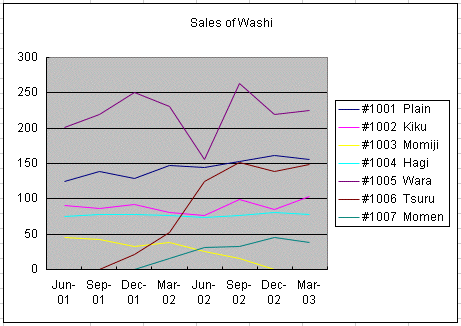
Making a Graph
- Bring up the WWW page with the sales of washi.
- Highlight the entire set of data by dragging from the left of the "Quarter
Ended" cell until the lower left cell containing "38"
- Copy the highlighted area (right clicking will bring up a menu).
- Open up an Excel spreadsheet
- Paste the data in by clicking in A1 and then pasting.
- Change the cells with dashes to zeros
- The dates will be wrong. Highlight all of the cells with the dates, and
from the 「書式/セル」 menu choose 「文字列」. Then fill in the dates again
by hand. (Sorry!)
- Highlight from cell B1 (not A1) until the last cell (with "38"). (The
graph program will only tolerate one column with labels which is why the 'A'
column can't be selected, too.)
- Click on the Graph icon in the menu bar.
- Select 折れ線 ("broken line graph", the 3rd choice) from the graph type
selection panel
- Click through the selection frames (次へ)without making any choices.
- Copy the resulting graph and paste it into MS Word.
Sample Completed Graph